NaSSH@dev:~/blogs$ cat secure-ad-policy-setup-part-1-2.md
Securing AD Accounts – [Part 1/2]
Introduction
I have not posted to here for a while, mainly due to the logistics of balancing my work and my free time at home. However, I have now got some time and some annual leave coming up – so why not get back into it? This will be a two part series covering project requirements for an on-premises Active Directory setup for LAB Inc.
Lab Setup
Unlike my last posts, I have moved from VirtualBox VMs to a single QEMU/KVM VM on an Cachy Host OS.
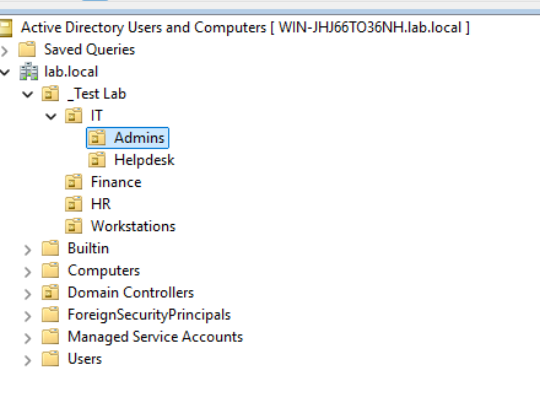
It runs Windows Server 2025 (evaluation) within the lab.local domain, and will be the only device used for this lab. The Windows Server runs as the Domain Controller for the environment. Below is the domain structure, which I have decided to keep simple for this series of posts:
Project Requirements
LAB Inc. has the following requirements for their IT setup:
- Regular users must have a secure password policy, with passwords being reset once every
3 months. - Guest accounts should be
disabled. - To protect data,
removable storage should not be permittedon workstations. Similarly, autoplay of executable removable mediaMUST be disabled. - Firewall must be enabled on all devices, with
incoming connections blocked. - Devices should lock after a set period of time and
require a password to unlock. - Control Panel / Settings access should be
revokedfor users. - Privileged user passwords must be
more complex than user passwords and reset more frequently. - Group Policy Objects need to be named clearly.
Account Security Policy
In order to effectively meet the requirements for account security, we must first define what policies we will need, per the project requirements.
In this case, we will create the following in Group Policy Management Console, and link them domain-wide:
SEC_PasswordPolicy – This allows us to set the minimum password requirement for all users.
SEC_DisableGuest – This will allow us to disable the guest account on workstations.
We use the SEC prefix to denote it is a security-focus policy.
SEC_PasswordPolicy
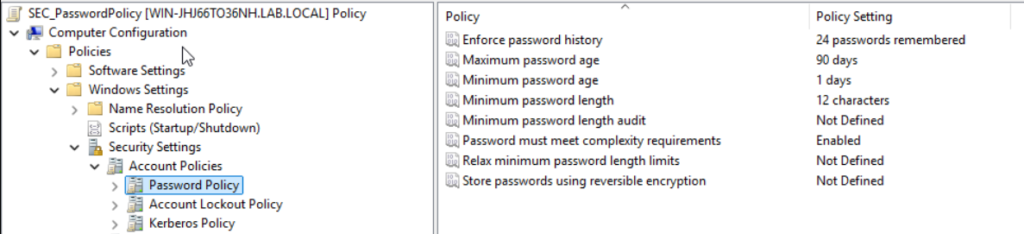
We will configure the following GPO under the lab.local domain:
We set the requirements as specified for the password policy. However, we purposefully set the minimum password age to 1 day. This is a deliberate choice as this prevents the user from defeating the Enforce password history policy – which would usually stop a user from re-using their password – by changing their password 24 times.
We will also enable the complexity requirements policy for the password policy setting. This stops the user from using their account name or full name as a password, as well as requiring three of four of the following: Uppercase, lowercase, number and symbol.
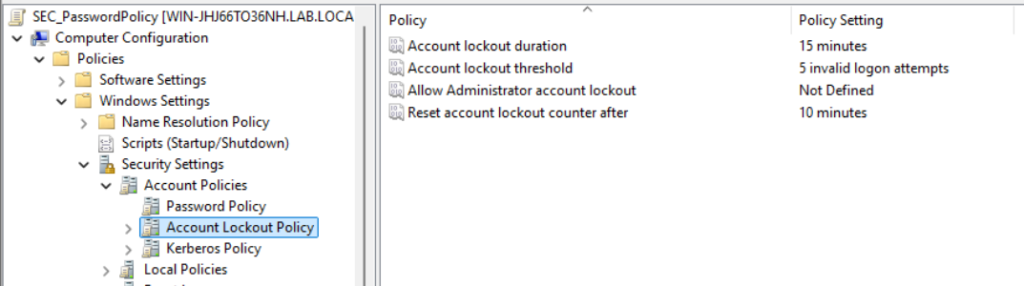
We will then configure the following settings under the Account Lockout Policy within the same GPO to hinder brute force attempts:
SEC_DisableGuest
We will then configure SEC_DisableGuest as a GPO linked to the domain, with the following policy:
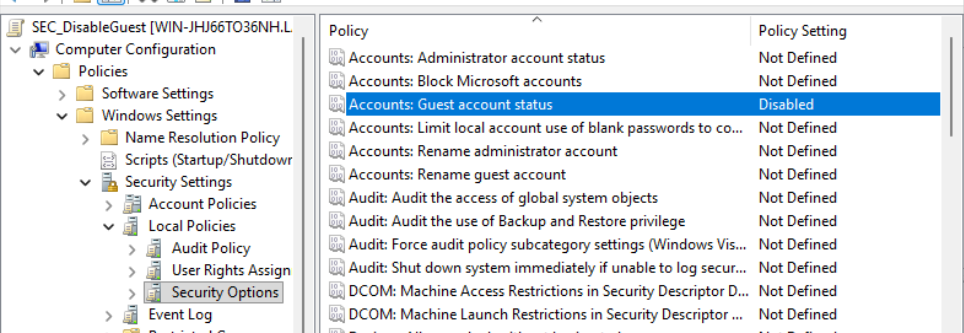
This prevents potentially unauthorized individuals from logging onto a workstation without a password – which is unacceptable for LAB Inc.’s security model.
But what about the Admin Passwords?
LAB Inc. requires administrator/privileged accounts to have stricter requirements, due to their high-risk nature if compromised. We do not want end-users to have to meet as strict requirements, therefore a fine-grained password policy is appropriate.
What is a fine-grained password policy?
A fine-grained password policy is configured in Active Directory Administrative Center, and allows you to create targeted password policies that overrule the domain-wide GPO we just made. This allows us to configure stricter requirements for privileged accounts.
Fine-grained Password Policies are also useful for service accounts. They can be set with indefinite but extremely long passwords with a very high lockout attempt time – this ensures availability should someone attempt to brute force the account (and cause a denial of service), as well as confidentiality as the risk of compromise is reduced.
Configuring a Fine-Grained Password Policy
Unlike Group Policy Objects, Fine-Grained Password Policies cannot be applied directly to an Organizational Unit. We must create a security group in which its members will have the policy applied. As per the requirements of the organization, we will need one for privileged accounts:
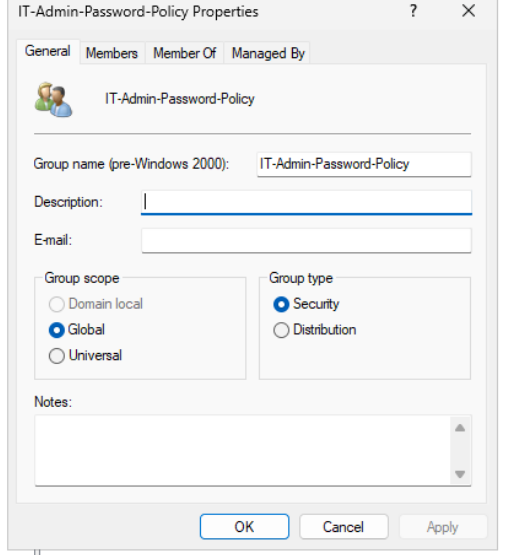
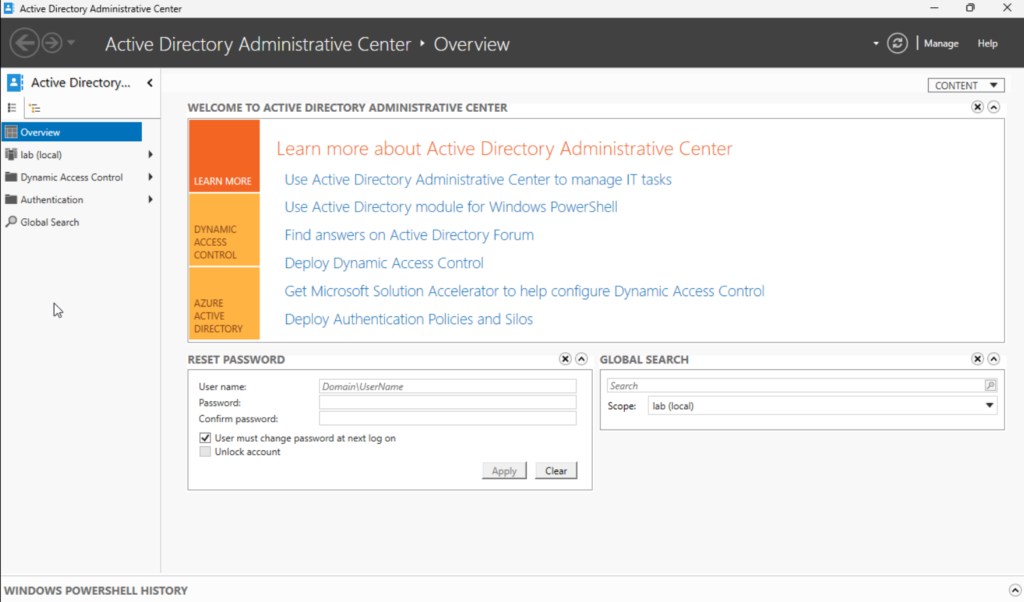
As long as this group is assigned to all privileged accounts, we can move to the next step. This type of policy is not configured as a group policy object, but within dsac.exe (AD Administrative Center), and by navigating to the Add Navigation Nodes option.
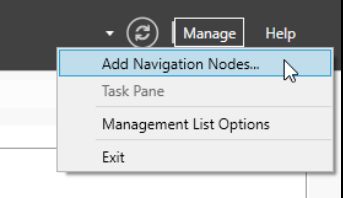
A menu will now pop up which will allow the administrator to add containers to their AD Admin Center dashboard. We will need to navigate to (domain name) -> System -> Password Settings Container:
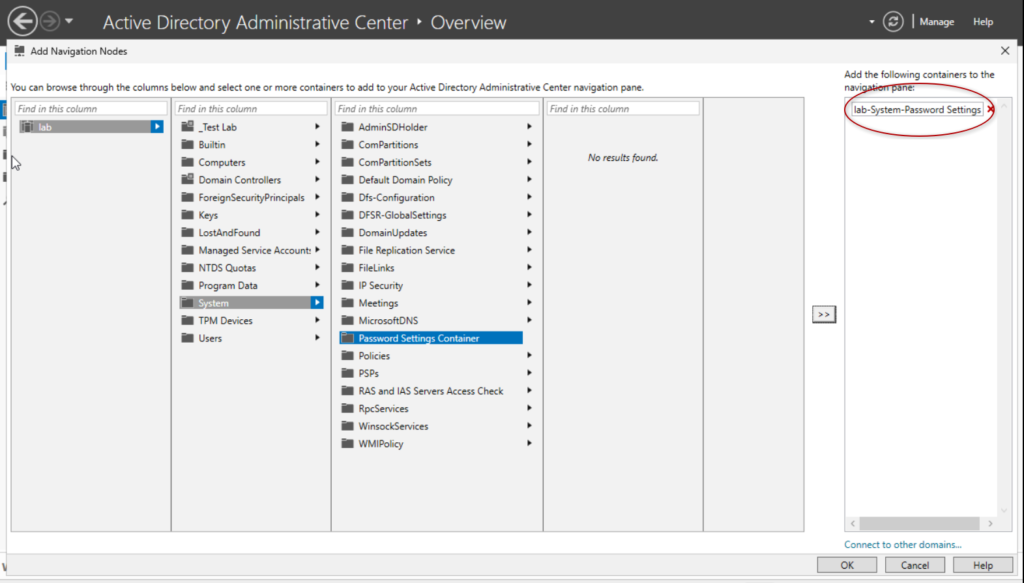
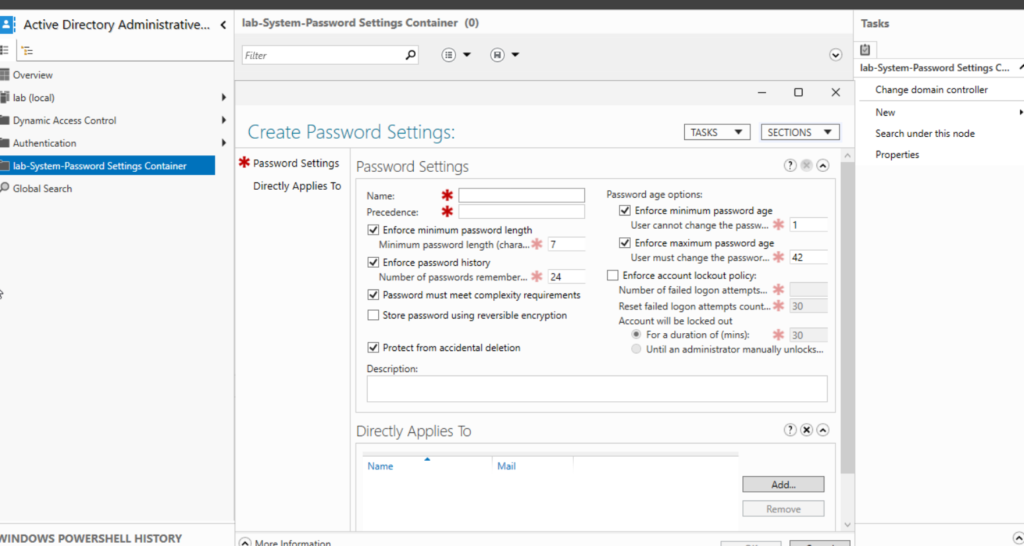
Clicking on the lab-System-Password Settings container and pressing OK adds that container to the admin’s dashboard, which they can use right away in order to configure their Fine-Grained Password Policies. We will configure the following policies:
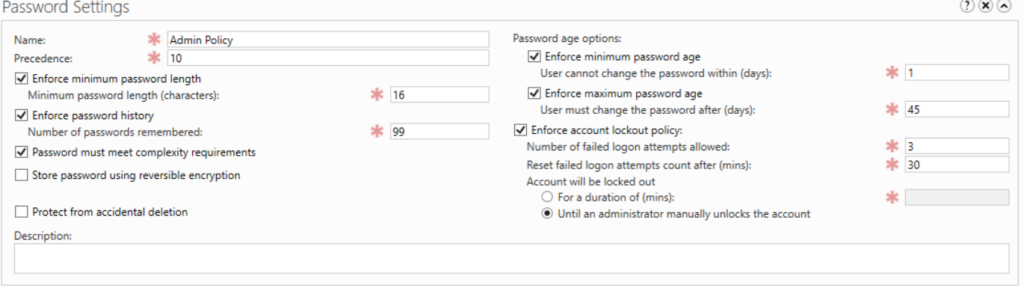
Our admin policy is a lot stricter than the regular users`. Mainly, the password length has been increased, the password history is (practically) indefinite, reset frequency is doubled and if the account is locked out, it must be unlocked by another administrator.
Finally, just below, we shall add the security group to the Directly Applies To table to apply it to all privileged accounts:
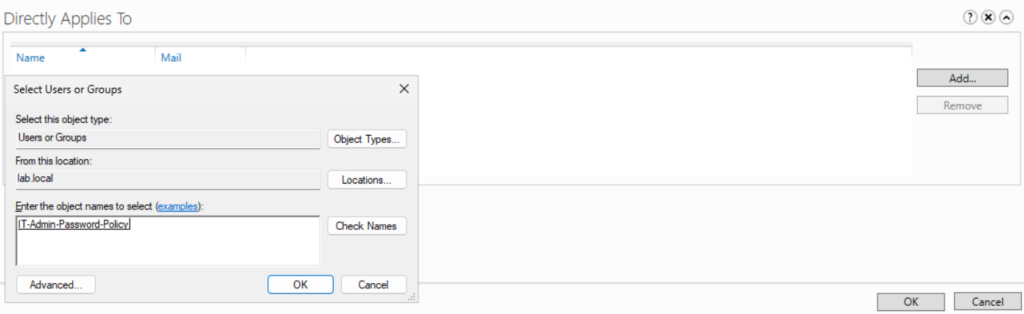

These policies have been designed to meet the organization’s requirements, and also minimize the risk should there be an attempted administrator account compromise.
Conclusion
This concludes Part 1 of this Secure AD Setup for LAB Inc's on-premises IT environment. To recap, we have:
- Created
minimum password requirementsand account lockout policies for regular users. - Disabled guest users to ensure unauthorized individuals cannot access workstations.
- We have created a
Fine-Grained Password Policyusing Active Directory Administration Center, and configuredextra requirements for admin accounts.
In my next post, I will be configuring organization-wide firewall settings, and protections related to removable media (both preventing insiders from extracting confidential data, as well as malicious programs running off of them.)
Thank you for reading 🙂