NaSSH@dev:~/blogs$ cat securing-ad-workstations-part-2-2.md
Securing AD Workstations – [Part 2/2]
Introduction
This post follows on from the previous post, where we are setting up LAB Inc.’s Active Directory for their on-premises users and workstations.
Previously, we had configured Secure Accounts, namely, by configuring a domain-wide password policy, disabling guest accounts, and configuring a fine-grained password policy for administrators using Active Directory Administration Center (dsac.exe). Today, we will be configuring the following in-line with the client’s requirements:
- To protect data,
removable storage should not be permittedon workstations. Similarly, autoplay of executable removable mediaMUST be disabled. - Firewall must be enabled on all devices, with
incoming connections blocked. - Devices should lock after a set period of time and
require a password to unlock. - Control Panel / Settings access should be
revokedfor users.
Securing Removable Storage
For data confidentiality purposes, we must both disable the use of removable storage and prevent executable from running automatically when media is inserted into the device.
Removing Access to Removable Storage
Under Computer Configuration -> Administrative Templates -> System -> Removable Storage Access we will enable the All Removable Storage classes: Deny all access as such:

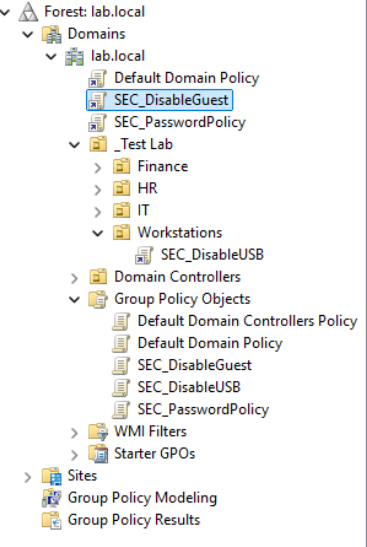
This prevents the workstation from using removable storage, and unlike the previous GPO’s, this one will be linked directly to the Workstations OU instead of the entire domain. Our current policy list will look like:
Disabling Autoplay
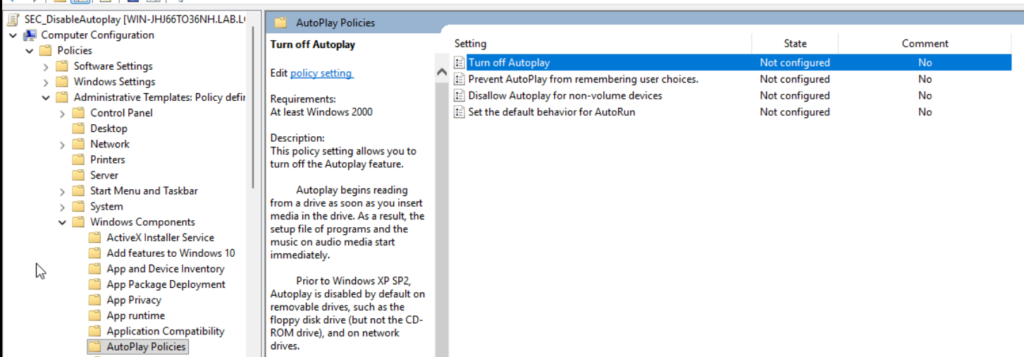
Next, we must disable the auto-run of setup and media files from removable storage. For this, we will create SEC_DisableAutoplay and enable the Turn Off Autoplay policy by navigating to Computer Configuration -> Administrative Templates -> Windows Components -> Autoplay Policies as such:
And then selecting to turn off autoplay on all drives:
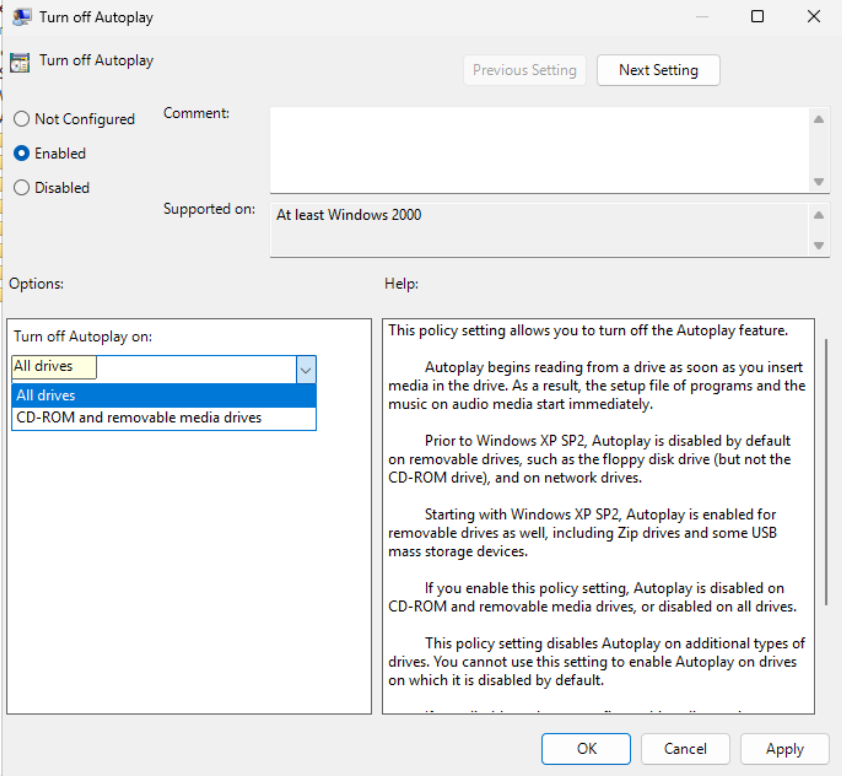
This policy is disabled to protect user’s from maliciously or accidentally installing executables from DVDs, CDs, etc.
Lock Screensaver
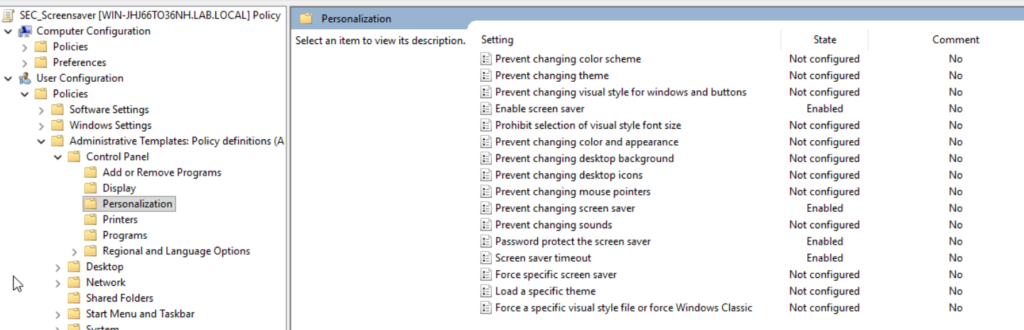
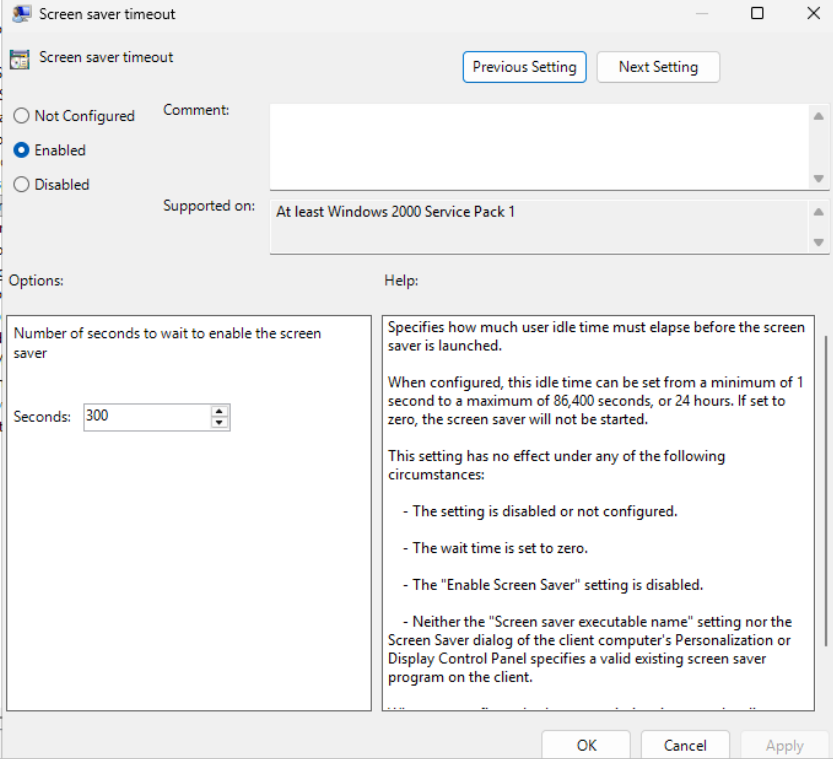
To reduce the risk of unauthorized users accessing an unlocked workstation while the user is away from their desk, it is important to set a password-protected screensaver. We shall create SEC_Screensaver and do this by navigating to User Configuration -> Administrative Templates -> Control Panel -> Personalization, and enabling the following settings:
Here, we enable the policy to enable the screensaver, prevent the user from changing it, requiring a password to unlock it and setting a timeout as such:
Disabling Access to Control Panel/Settings
Although LAB Inc. does not expect user’s to tamper with their systems on purpose, disabling settings is an essential policy that prevents accidental issues – imagine a user changes their DNS settings to try and make their internet run faster, but are then unable to connect to the domain. Seems harmless at first, but we would prefer to avoid that.
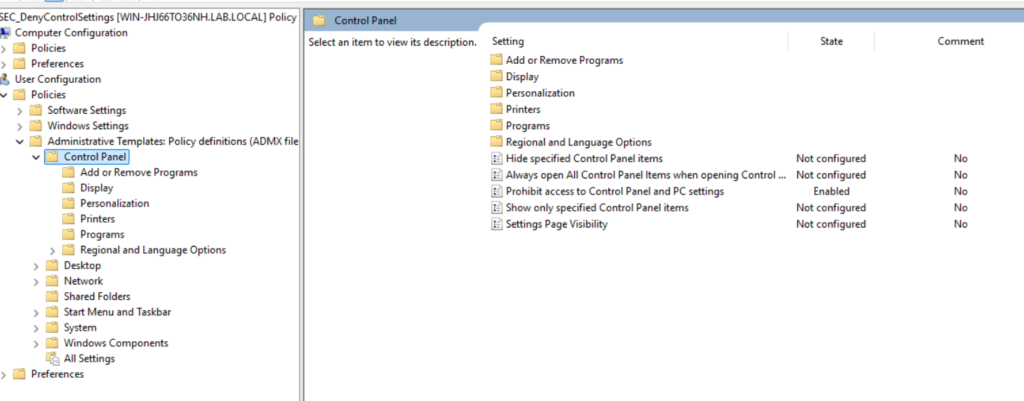
We do this by creating SEC_DenyControlSettings and navigating to User Configuration -> Policies -> Administrative Templates -> Control Panel and not going further down the nested files. We then enable the policy named Prohibit access to Control Panel and PC settings as such:
Configuring Firewall Settings
This policy is important to prevent users from changing settings relating to the software firewall provided by Microsoft Defender. The best policy is to disable all incoming connections and allow outgoing connections.
Unlike what may be suggested, blocking incoming connections does not stop you from downloading or streaming files. Blocking incoming connections block connections initiated by an outside host – and outgoing connections are ones initiated by the user and their programs.
We shall create the SEC_Firewall policy, which will be applied to the entire domain. We will navigate to Computer Configuration -> Policies -> Windows Settings -> Windows Defender Firewall with Advanced Security -> (Ditto) as such:
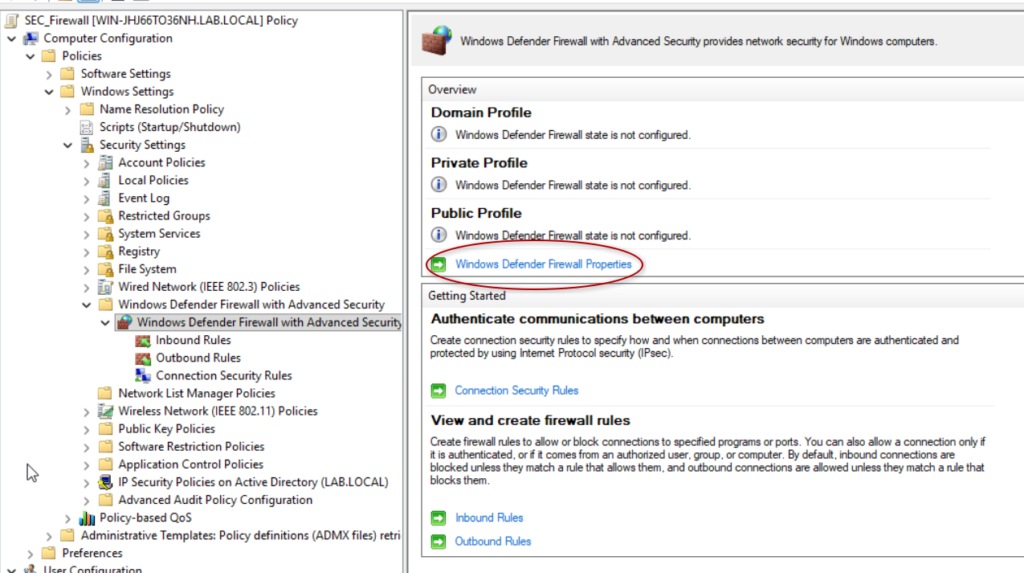
We are presented with a UI, where we can then configure the properties by clicking on Windows Defender Firewall Properties, which will take us to the following screen:
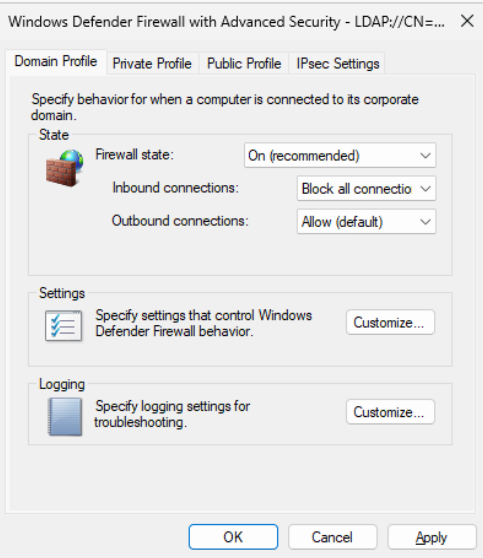
We set the above settings for all three profiles (domain, private, and public) to ensure that the firewall settings remain consistent regardless of if a setting changes.
Testing & Conclusion
The above configurations now mean that all of LAB Inc’s requirements have been met. To recap:
- Regular users must have a secure password policy, with passwords being reset once every
3 months. - Guest accounts should be
disabled. - To protect data,
removable storage should not be permittedon workstations. Similarly, autoplay of executable removable mediaMUST be disabled. - Firewall must be enabled on all devices, with
incoming connections blocked. - Devices should lock after a set period of time and
require a password to unlock. - Control Panel / Settings access should be
revokedfor users. - Privileged user passwords must be
more complex than user passwords and reset more frequently. - Group Policy Objects need to be named clearly.
We configured all but removable storage, autoplay, firewall, screensaver, and access to control panel/settings last week, and we have configured the rest today.
As I did not set up a domain-joined device to test – at this stage, in order to test this policy, you would log in to a user on a domain-joined device and run gpresult /r, which will display a summary of GPOs applied. If they are not present, running gpupdate /force will force the device to pull down the latest GPO information.
I enjoyed configuring these Active Directory Settings, and hope it demonstrates some of my technical ability in a clear fashion.
Thank you for reading 🙂