NaSSH@dev:~/blogs$ cat scenario-unable-to-log-in-to-domain-due-to-incorrect-dns.md
Scenario: Unable to Log In to Domain (due to incorrect DNS)
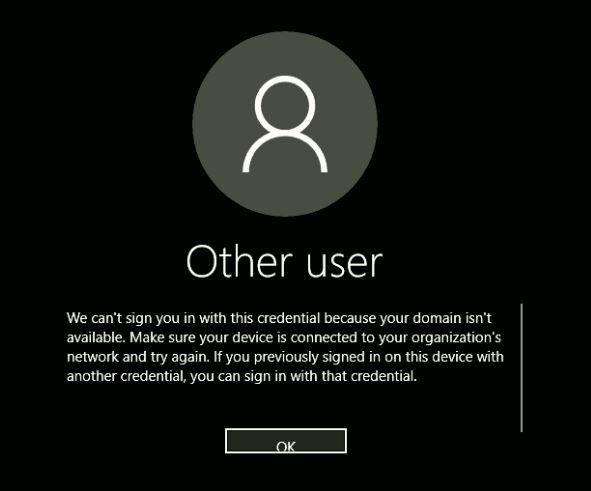
This scenario was created to simulate a common first-line support request where a user loses the ability to log in to their organisation’s Active Directory domain. The aim of this scenario was to combine fundamental network concepts with Active Directory knowledge to address an issue caused by a change a user made in good faith – a common situation Service Desk Analysts may face.
Reported Issue
- The user reports not being able to log in with their domain credentials.
- The issue persists after restarting the computer.
Initial Assessment
Clarifying the Issue
It is important to clarify the exact issue the user is facing. This included when the problem started, if anything occurred prior to this issue.
In this scenario, it was concluded the problem started after a reboot. The user noted they had recently made some changes to increase perceived browser speed, which was noted as a potential factor.
Determining the Scope
Authentication issues with a domain would have had a significant impact on business critical operations as employees would be unable to access domain resources.
In this scenario, the issue was isolated to a single user, and was not affecting any other users.
Basic Indicators and Non-Technical Causes
Basic indicators were checked to identify any causes, only the sign-in error message was noted.
The Ethernet cable was reseated, and the computer restarted from a powered-down state. No changes were reported. The user noted that no known password changes had occurred recently.
IMPORTANT: User was asked to try logging in on another domain-joined computer, which was successful.
IT suggested the user use another computer as an alternative to minimize disruption to business operations.
Troubleshooting Steps
Based on the symptoms shown, the issue appeared to be an authentication failure tied to the device itself, and not the user’s domain profile. As domain authentication was unavailable, access to the device was obtained using a local administrator account to troubleshoot.
Check Network Connectivity
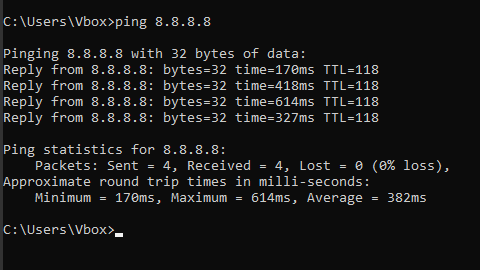
8.8.8.8 was pinged to confirm that the device had general network and internet connectivity.Examine IP Configuration
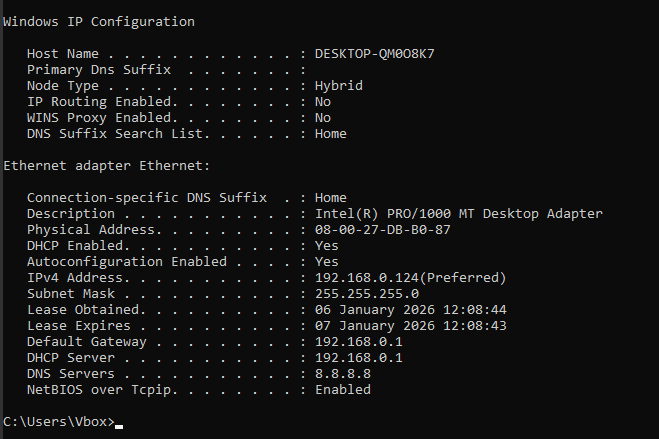
ipconfig /all was run to identify potential network configuration issues that could result in authentication issues.The output showed a DNS server configured to a public DNS address of 8.8.8.8 (the same address used for the ping test, coincidentally!). In an Active Directory Domain environment, this is incorrect. Active Directory relies on internal DNS servers to locate domain controllers.
Test the Theory
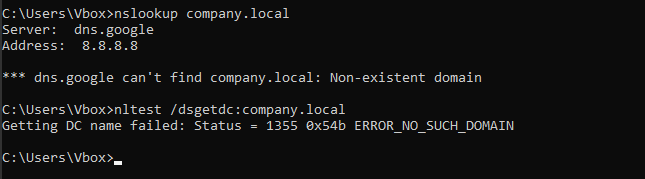
nslookup and nltest /dsgetdc: were utilised in order to confirm DNS was preventing domain authentication. Both name resolution and domain controller lookup fail to locate a domain controller, confirming the DNS issue.Resolution
As the cause of the issue was confirmed while troubleshooting, changing the DNS setting was the immediate first step.
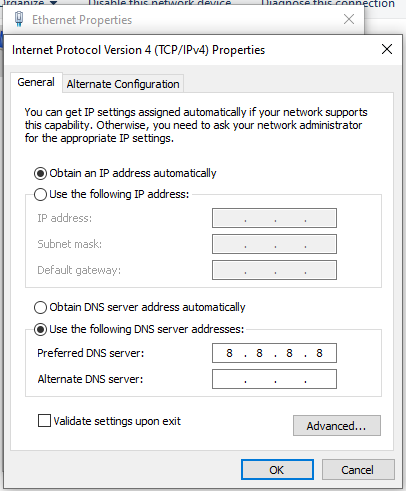
The user had set a manual DNS server address. The option to
Obtain DNS server address automaticallywas selected to allow the computer to receive DNS server address from the DHCP server.
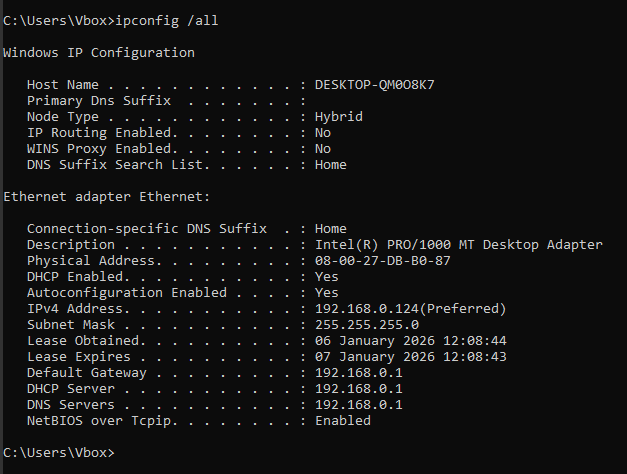
ipconfig /all was run again to confirm the DNS address had been assigned by the DHCP server. As this scenario was run on a single VM, the DNS server address is 192.168.0.1. In a real world scenario, the DNS server address would point to a DNS server on the network.Following the DNS correction, the user was able to successfully log in using their domain credentials on the affected device.
Alternative Steps
- If multiple users were affected, investigation of DNS, domain controller availability or configuration would be required
- If this issue persisted, escalation would be required to investigate infrastructure and identity services
- Depending on whether credentials are cached, users may have still been able to log in but still experience domain-related issues.
Escalation Criteria
- Multiple users affected
- Internal DNS servers unreachable
- Suspected domain controller outage
- Persistent failure after DNS correction
Root Cause
The device was configured to use a public DNS server rather than the internal DNS required for Active Directory authentication. This change was made by the user while attempting to improve perceived browser performance, without realizing the impact it had on corporate authentication services.
It is important that the blame is not put on the user for this issue and approach this scenario with empathy, especially as the change was done in good faith. Service Desk should focus on educating the user as to why the existing network settings are important to the domain infrastructure.
It is valuable to reflect on preventing future incidents similar to this – in this instance, I would recommend amending permissions for standard users to prevent them from changing the DNS settings on their machines.
Conclusion
This scenario was designed to reflect a realistic, first-line Service Desk incident caused by innocent user error rather than a hardware or software failure. I wanted to focus on the importance of structured troubleshooting, but also how to approach an incident with empathy (as in educating the user) and courtesy (by providing an alternative).
Through this scenario, I have demonstrated:
- A methodical approach to diagnosing IT issues
- An understanding of user needs
- The importance of educating individuals to avoid user error
- The importance to reflect on incidents post-documentation to avoid similar scenarios in the future.
Thank you for taking the time to read through this scenario! 🙂