NaSSH@dev:~/blogs$ cat scenario-connected-but-no-internet-apipa.md
Scenario: Connected to Network but No Internet (APIPA)
This scenario was created to simulate a common first-line support request involving a loss of internet connectivity despite a network connection. The aim of this scenario was to reinforce fundamental network concepts, practice logical troubleshooting steps, and develop clear incident documentation skills suitable for a service desk role.
Reported Issue
- User reports being connected to the network.
- However websites fail to load.
- The issue persists after restarting the browser.
Initial Assessment
Clarifying the Issue
The initial step was to clarify the nature of the issue. This included confirming issue began, if the device appeared connected to the network, whether any websites or internet-based services were accessible.
In this scenario, we confirm the user was connected to the network, but unable to access any websites or internet-based services. This happened after a reboot.
Determining the Scope
An inability to access the internet can have a significant impact, the scope of the issue was assessed to determine priority and next steps.
In this scenario, we confirm the issue was isolated to a single user, and not affecting other users or devices.
Basic Indicators and Non-Technical Causes
Basic indicators were checked to identify any obvious causes, including the network status icon and visible error messages.
The device showed as connected with no warnings. To rule out non-technical causes, the user restarted their browser, tested an alternative browser, and confirmed the issue persisted.
Troubleshooting Steps
Based on the symptoms shown, the issue appeared to be related to network configuration rather than application specific behaviour.
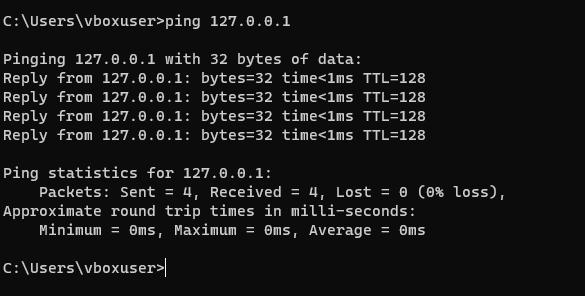
Test the Local Stack
Ping an External Internet Address
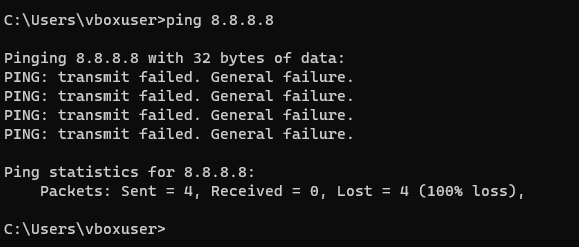
8.8.8.8 was pinged to determine internet connectivity. The command returned transmit failed. General failure. which is indicative of a local system networking failure, rather than remote connectivity or a DNS issue.Examining ipconfig
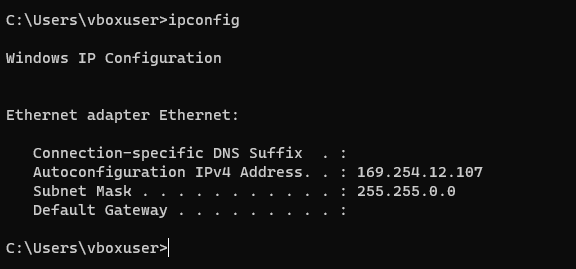
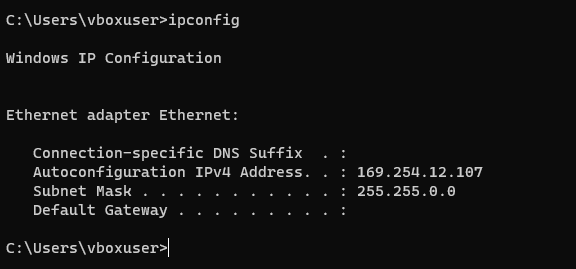
ipconfig command was run to determine the current configuration of the Ethernet adapter. In this case, an Autoconfiguration IPv4 Address (169.254.x.x) was configured on the interface.A device will automatically configure a 169.254.x.x when it is unable to complete the DHCP negotiation process to receive a dynamic IP from the DHCP server. These addresses – also known as APIPA addresses – are connected to the local network, but packets from these addresses are not routed between networks, including the internet. This explained the user’s symptoms of being connected to the network, but unable to access internet-based services.
The device is configured for DHCP, but cannot communicate with a DHCP server. This can be caused by a number of issues, including network adapter issues, incorrect network profile or firewall rules, a corrupt tcp/ip stack or VLAN/port misconfiguration. The only user affected reported symptoms after a reboot, which indicated a local issue rather than one upstream.
Resolution
Given the symptoms, the most likely cause is an issue with the network adapter.
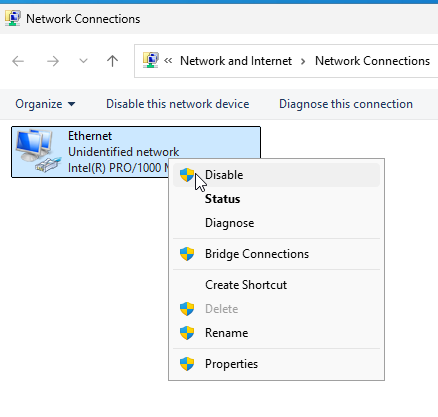
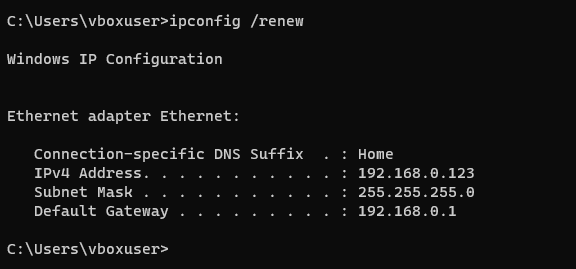
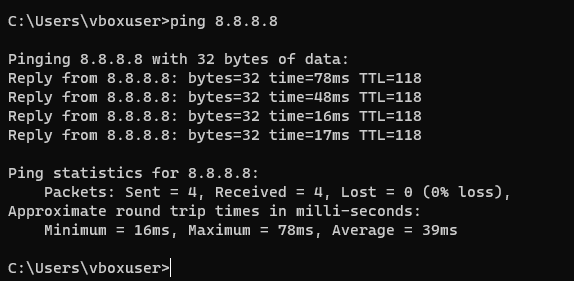
ipconfig /renew was ran on the user’s computer, which initialized a successful DHCP negotiation with the DHCP server on the network. 8.8.8.8 pinged to confirm internet connectivity. Running ipconfig /renew was not strictly necessary as a DHCP negotiation would have occured when the adapter was re-enabled, but was included for the purpose of this scenario.The issue was resolved by resetting the network adapter and renewing the IP configuration, after which the device successfully obtained an IP address from DHCP.
Alternative Steps
- Should re-enabling the network adapter have failed to resolve the issue, I would have considered resetting the TCP/IP stack with
netsh int ip resetandnetsh winsock resetand rebooting the computer. - I would also have checked the NIC in Device Manager and look for a warning icon that indicates a driver issue. At this point, you could roll back the driver if policy allows.
Escalation Criteria
- Should the above have failed to troubleshoot the problem, documentation of findings and escalation would be an immediate consideration.
- Escalation would have also occurred if this issue affected multiple users, as this indicates a wider DHCP or network connectivity failure.
Root Cause
The device was unable to obtain an IP address from DHCP. The exact cause could not be conclusively determined at first line, however, service was restored after troubleshooting the network adapter.
Conclusion
The scenario documented here was designed to reflect a realistic, first-line Service Desk incident rather than a more complex infrastructure failure. I wanted to focus on practicing structured troubleshooting and logical thinking, which are core responsibilities of a Service Desk Analyst.
Through building this lab and documenting the scenario, I have demonstrated:
- A methodical approach to diagnosing IT issues
- A foundational understanding of networking concepts including DHCP
- Practical knowledge of the Windows desktop of command-line environment
- The importance of documentation, communication, and knowing when to escalate.
Thank you for taking the time to review this scenario! 🙂