NaSSH@dev:~/blogs$ cat learning-ad-by-creating-a-file-share.md
Learning AD by Creating a File Share
Introduction
For the past couple of weeks, I have been playing around with Active Directory on my local lab setup. Even with the increase in Hybrid architectures, Active Directory is not going anywhere, and it is definitely still worth learning the tools given in order to be an effective system administrator. This is not meant to be a tutorial, but rather documenting my learning progress.
Lab Setup
For this lab, I am using two Windows VirtualBox VMs within the lab.local domain as guest OS’ on a debian-based Linux OS.
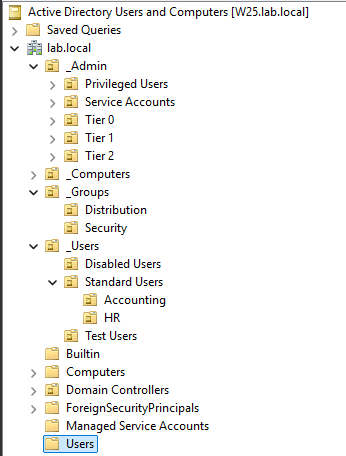
I am running an instance of Windows Server 2025 as the domain controller, with AD DS, File Services, and DNS running. In a production environment, these services would be more secure separated into different VMs. Below is the Domain structure:
The other Virtual Machine is a Windows 11 Enterprise Client OS, which will be used to test the configurations made today.
Lab Users
nassh-server@lab.local – This is the server administration account for the nassh user. This login is only used by me for the server, following the tiering model best practices.
brookekeeper@lab.local – Brooke Keeper, our resident accountant, that will be used to test file permissions.
Configuring the Security Groups
We will be assigning access to the file share by Security Groups using the Active Directory Users and Computers tool. This will allow us to effectively control which users can access which files within the shares. First, let’s make a child OU of the Security Group OU in order to sort all file share related groups into one place.
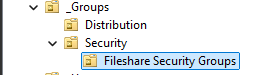
Then we create the fs-administrators security group, which will give all access to file shares for the purpose of management. We will also create the fs-accounting security group to allow users access to the accounting subfolder within the share.
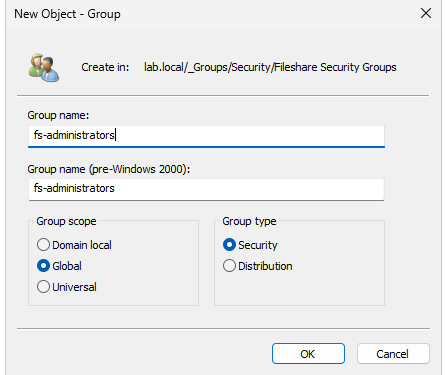
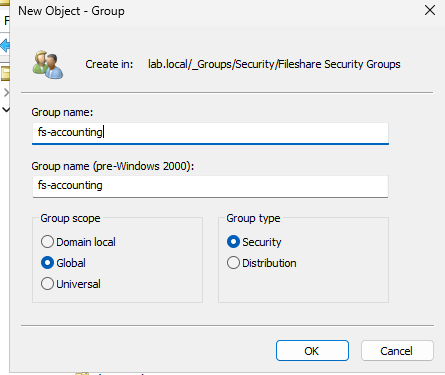
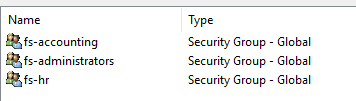
Now we are left with the above security groups. I have added an extra for Human Resources, just for thoroughness.
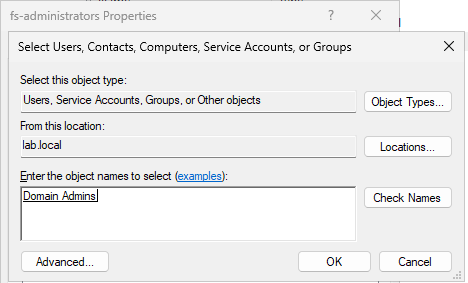
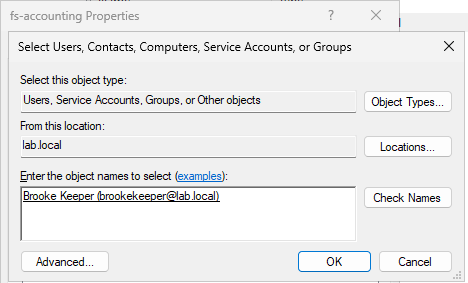
Now, go into the properties of those Security Groups, select the Members tab, and add the desired users to the security groups. In this lab, I added Domain Admins to the fs-administrators group, and our resident bookkeeper to the fs-accounting group.
Creating and Modifying the Share Folder
Now that we have our permission model set up, we can now create the share folder and manage its permissions
Creating the Shares
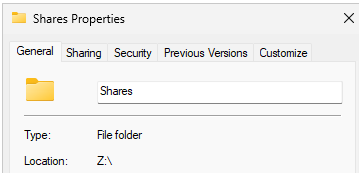
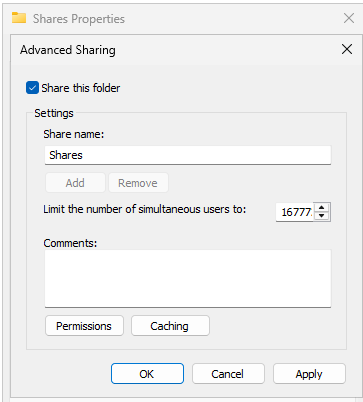
In a secondary drive, I have created a folder that is dedicated to file shares on the server. Then, we navigate to Sharing > Advanced Sharing and tick Share this folder.
Then, in the permissions tab of this menu, we will allow every user Full Control within share permissions. This will allow other users on the network to access this folder.
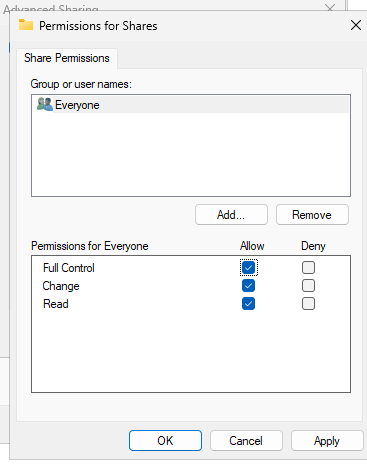
Note:Even though this seems counterintuitive, this is best practice. Share permissions are the vaguest and most basic permissions and only apply to network access. We will be able to more specifically controlNTFS Permissions, which take precedence over share permissions, within theSecurity tabnext.
Configuring Security Settings for the Share Folder
If we navigate to the Shares folder properties, in the Security tab, an option appears to access advanced settings.

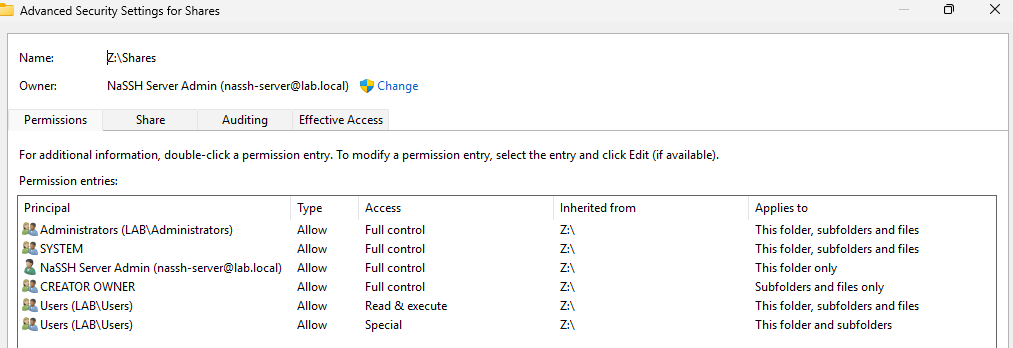
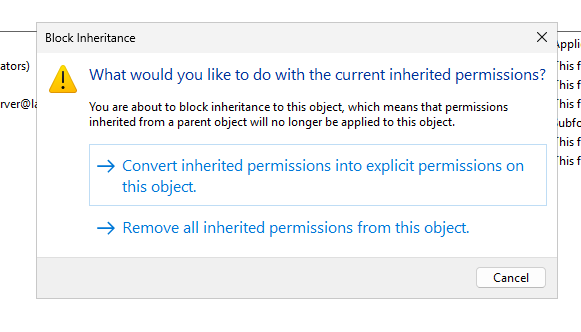
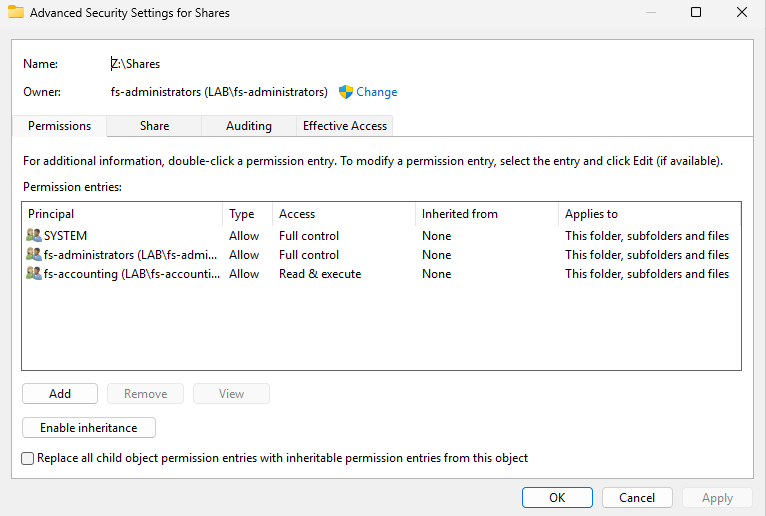
This displays all the principals that have permissions within this folder, inherited from the Z:\ drive on the server. This is not the configuration we want, and we do not want to inherit these permissions. At the bottom of this page is an option to Disable Inheritance. We use the first option in this scenario so we can remove undesired entries by hand.
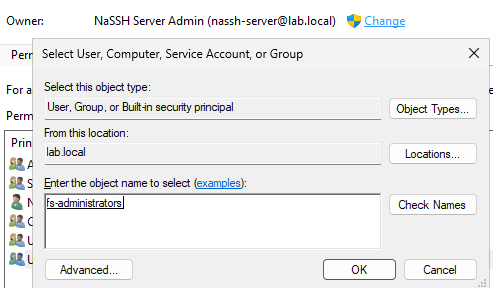
We then change the file owner to the fs-administrators security group, and then allowing all permissions for that group.
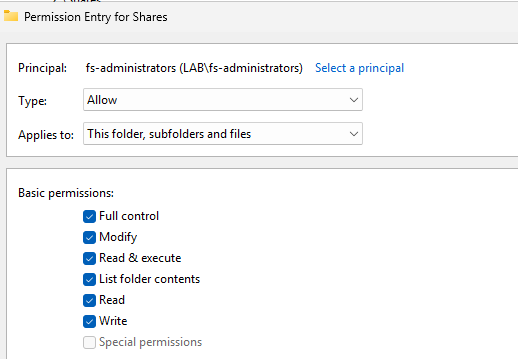
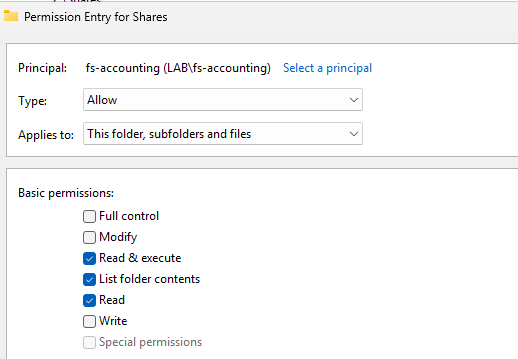
And then giving read access to fs-accounting, and deleting all previously inherited permissions (except SYSTEM) from the Z:\ drive.
Configuring Security Settings for the Shares Subfolders
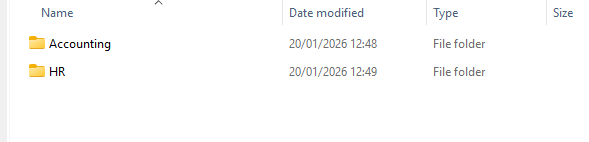
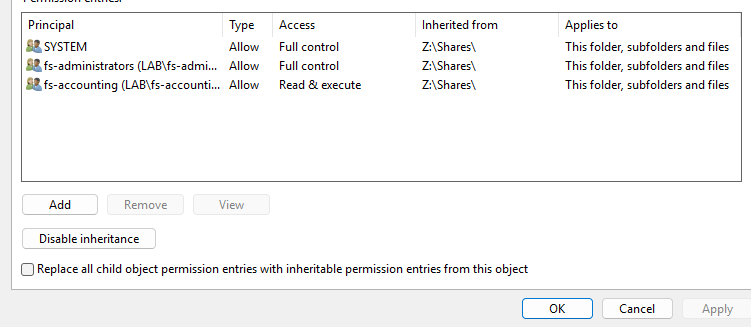
It is important to note that subfolders (such as Z:\Shares\Accounting) within the configured share folder will inherit the permissions we have configured on the Shares folder. If we create a HR subfolder now, the fs-accounting group will have inherited read access as demonstrated – which is a definite security concern.
That note aside, now we need to configure the Shares\Accounting sub-folder. After disabling inheritance and removing any unwanted security groups, we will give the fs-accounting group near full control over the subfolder as such:
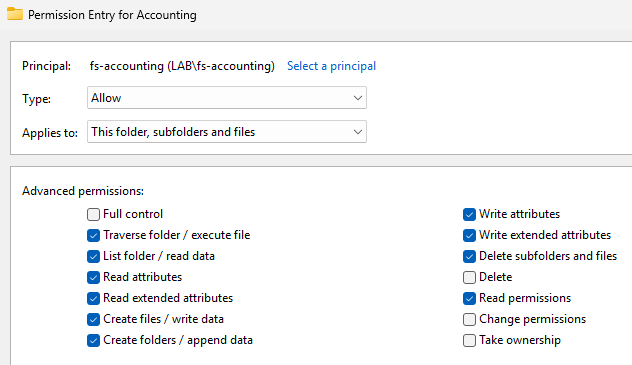
We purposefully remove the ability to delete the folder, change existing permissions, or take ownership of the folder. We still allow users in this group to delete subfolders and files, and manage it however they like.
Alternatively, in a organization more concerned with permission allocation, it may be desirable to not allow the majority of members to write or delete share files, and leave it up to supervisors or management to update the share contents. To do this, you could assign user accounts extra permissions manually, or you could have two security groups per share. Such as:
fs-accounting-ro– For read-only users.fs-accounting-rw– For read-write users.
Mapping the Drive & Group Policy
Now that the permissions have been configured in a secure manner, we can now make the share folder available to users!
We create a Group Policy Object linked to the entirety of the domain.
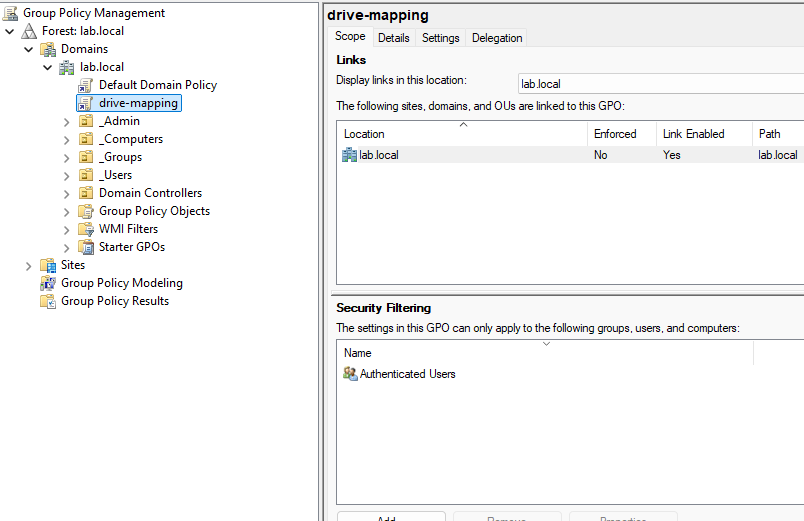
It is important to be considering security implications of each policy you configure. As seen in the Security Filtering section of the policy, which specifically scopes where the policy applies. The Authenticated Users group, which is applied by default, is slightly misleading. Authenticated users includes computers, service accounts, regular users, and more.
If somebody abuses a poorly configured computer to access a local account, this policy would apply, and would allow them access to our share. To fix this, we change the security filtering to Domain Users, which only allows actual Users authenticated to the domain to access the share.
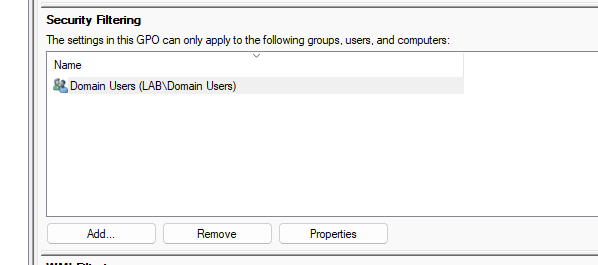
After properly configuring the Security Filtering settings for the policy, we edit the policy by rightclicking and selecting edit. In User Configuration > Preferences > Windows Settings > Drive Maps, we can map the drive to the network by right clicking an empty space and creating a new mapped drive.
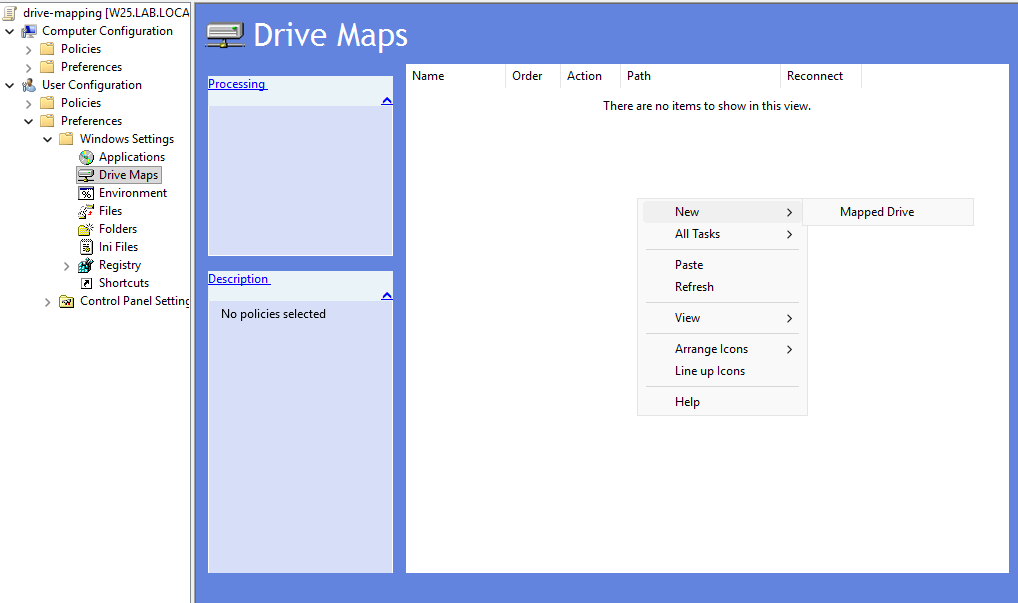
Now, we need to configure the mapped drive. It is important to note that the location must be the network location (\\W25\Shares) and not the local location (Z:\Shares). This can be found by right-clicking the share folder on the server, go onto the Sharing tab, and locating the network path.
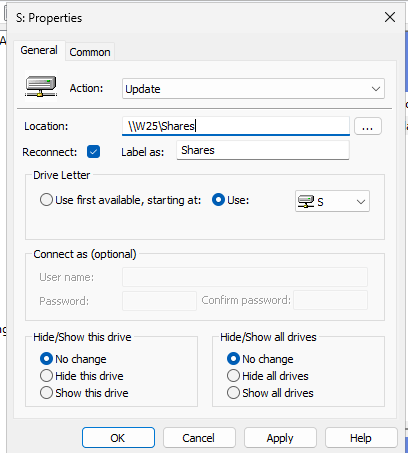
We keep the action as the default update, enable the reconnect option. The reconnect option enables persistent mapping, and Windows will remember the mapping and reconnect to the share at each user logon. For a company-wide network share with department subfolders, this is the most appropriate configuration. We use the S drive letter in this scenario.
Verifying Results
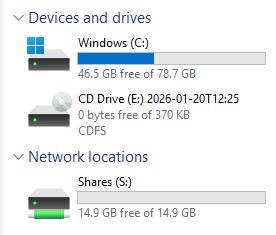
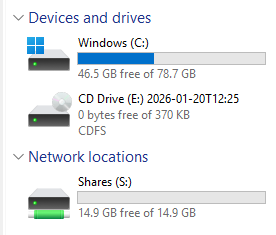
Logging onto the domain on the Windows 11 Client computer with brookekeeper@lab.local, our resident bookkeeper, shows that the Shares drive has been mapped on the network! Remember, this account is part of the fs-accounting security group, so it should not have access to the HR subfolder.
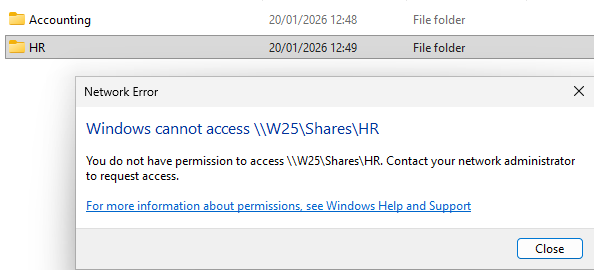
Which it doesn’t!
Conclusion
This lab reinforces my ability to use Active Directory as a tool to help organisation’s manage their data effectively and securely. By implementing security groups, NTFS permissions, Group Policy and Drive Mapping, I was able to design a simple permission model that is manageable and scalable.
Working through this has taught me a lot about how to organize a domain structure, the differences between Share and NTFS permissions, and relying on security groups instead of individual users. It has also given me insight as to how small misconfigurations, such as the broad security filtering in Group Policy, can introduce real security risks.
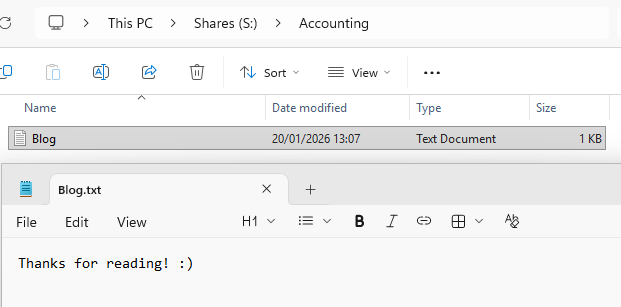
Oh and, yes, Brooke Keeper can access the accounting folder :)